
Diagnostic reference v8.52
Troubleshooting and guides
Step-by-step fixes for the most common HWiNFO issues on Windows 10 and 11.
Issue index
Numbered troubleshooting guides
Work through these in order when multiple symptoms appear. Driver and permission issues should be resolved before tuning sensor logging.
-
All sensors show N/A
Sensor Status returns no live values for any row.
- Symptom
- Every sensor row in Sensor Status displays N/A after HWiNFO starts. Temperatures, voltages, and fan speeds never update. The status bar may report the kernel driver as not loaded.
- Cause
- The hwinfo64a.sys driver failed to install or load. Common triggers include missing administrator rights, a blocked driver file, another monitoring tool holding the SMBus or EC interface, or an outdated build after a Windows update.
- Fix
- Close other hardware monitors (MSI Afterburner, Open Hardware Monitor, AIDA64). Right-click HWiNFO64 and run as administrator. Reboot and launch again. Update to the latest 8.52 build from the download page. If N/A persists, check guides 3 and 4 for security blocks.
-
Memory Integrity blocks fan readings
CPU and GPU temperatures work but fan RPM rows stay at zero or N/A.
- Symptom
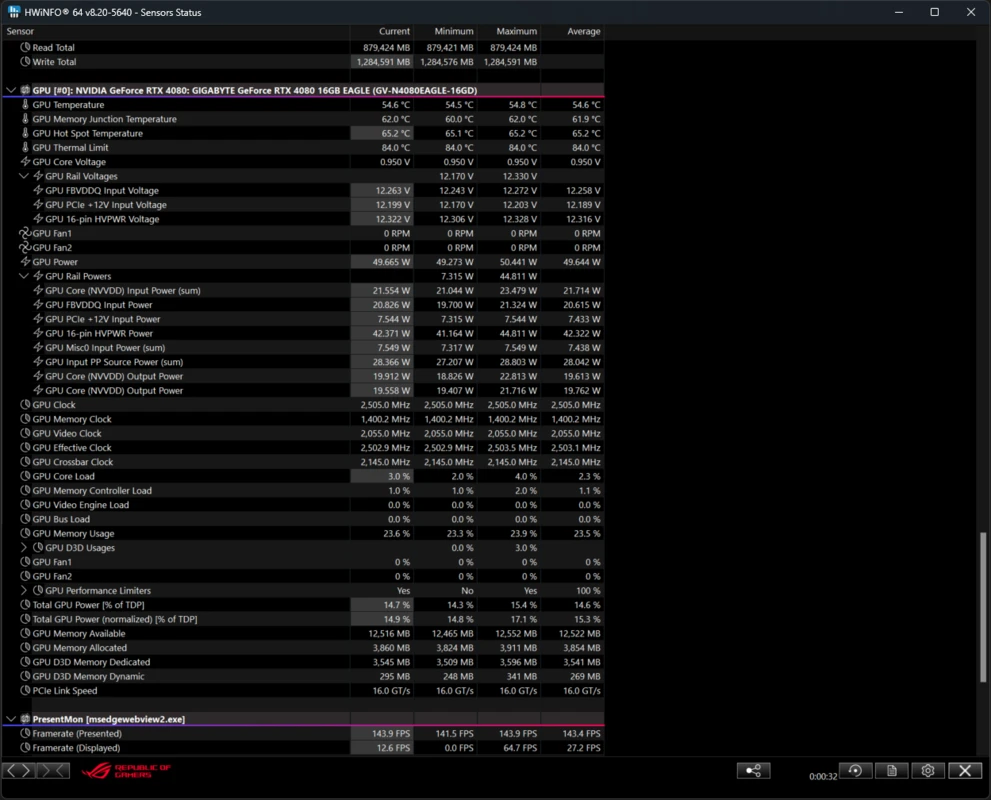
- Most temperature and power sensors update normally. Fan speed rows for chassis, CPU, or GPU fans read 0 RPM, N/A, or disappear entirely. The issue often appears after enabling Windows security features.
- Cause
- Core Isolation Memory Integrity (Hypervisor-protected Code Integrity) restricts low-level access to some embedded controller registers. HWiNFO may read thermal diodes through one path while fan tachometer access is blocked on certain chipsets.
- Fix
- Update to HWiNFO 8.52, which includes ongoing compatibility work for Memory Integrity. Open Windows Security, Device Security, Core Isolation, and review Memory Integrity settings. Temporarily disable Memory Integrity to confirm the cause, then re-enable after verifying fan rows return. Look for alternate fan sensor names in Sensor Status. See also compatibility FAQ.
-
Antivirus quarantined hwinfo64a.sys
Security software removed or blocked the HWiNFO kernel driver.
- Symptom
- HWiNFO warns that the driver is missing or could not load. Your antivirus history shows hwinfo64a.sys quarantined, deleted, or flagged as suspicious. Sensor Status stays empty or shows all N/A.
- Cause
- The kernel driver extracts to a temp folder, loads with elevated privileges, and reads hardware tables. Heuristic scanners associate this pattern with unwanted software even though REALiX s.r.o. signs every official build.
- Fix
- Restore hwinfo64a.sys from quarantine only after confirming the file publisher is REALiX s.r.o. under Properties, Digital Signatures. Add HWiNFO64.exe and the driver path to your antivirus exclusion list. Reinstall from the download page. Submit a false-positive report to your AV vendor. Full background is on the trust and security page.
Antivirus warning
A detection does not mean the file is malicious. Verify the digital signature before restoring or excluding. Never disable real-time protection permanently; use a targeted exclusion after publisher confirmation.
-
Windows 11 Hardware-enforced Stack Protection
Windows blocks the driver citing stack protection incompatibility.
- Symptom
- After a Windows 11 update, HWiNFO shows a message that hwinfo64a.sys is incompatible with Hardware-enforced Stack Protection. The driver fails to load and sensors do not start.
- Cause
- Windows 11 introduced a security mitigation that rejects kernel drivers not compiled to meet stack protection requirements. Older HWiNFO driver builds may be blocked until REALiX ships an updated signed driver.
- Fix
- Install the latest HWiNFO 8.52 build, which includes driver updates for recent Windows 11 releases. Open Windows Security, App and browser control, Exploit protection settings, and review program-specific overrides only if the latest build still fails. Reboot after updating. Track related notes in the FAQ.
-
Red X next to sensor rows (Ins key)
Sensors appear disabled with a red X icon in the list.
- Symptom
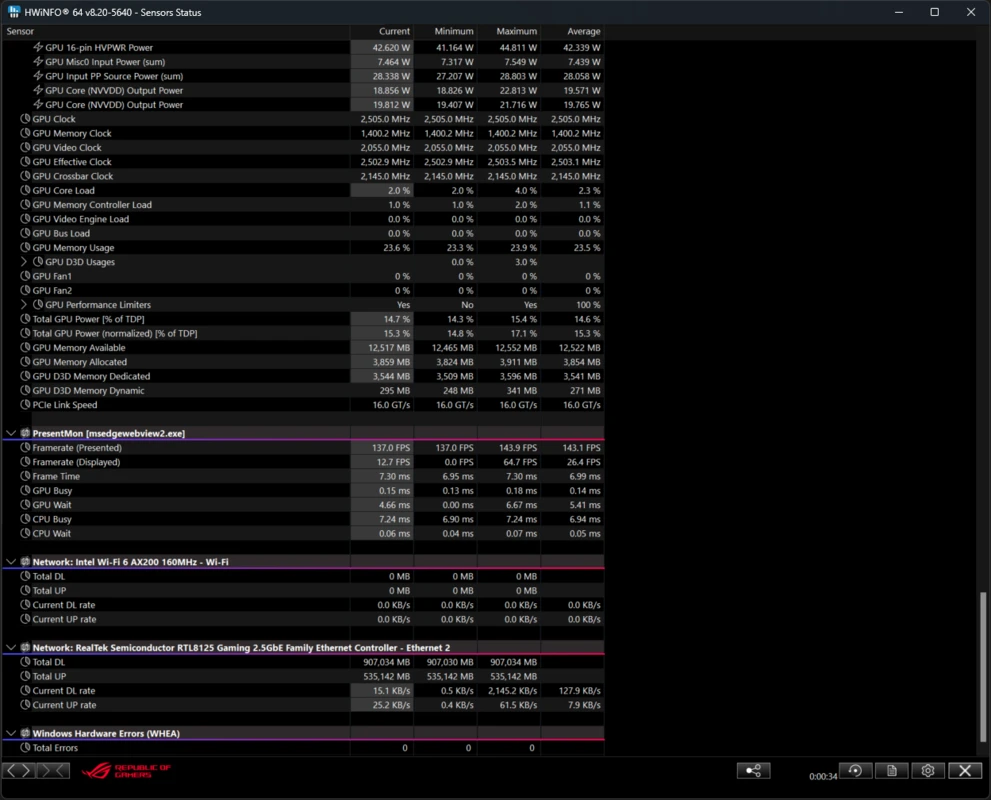
- One or more sensor rows show a red X icon. Values may freeze or disappear. Other rows in the same category continue updating normally.
- Cause
- The sensor was hidden or disabled, often accidentally through the Ins (Insert) keyboard shortcut while Sensor Status had focus. Custom filtering or prior session settings can also hide rows.
- Fix
- Click the affected row and press Ins to toggle visibility. Right-click the row and choose Show if available. Open Sensor Status, go to Configure Sensors, and re-enable hidden entries. Reset the sensor layout from Settings if many rows are affected. See sensor monitoring features for layout tips.
-
Logging for thermal diagnosis: best practices
Capture reliable temperature and power data for support tickets or RMA evidence.
- Symptom
- You need to prove thermal throttling, fan failure, or power limit behavior but screenshots alone miss timing and peak values. Support requests lack timestamped evidence.
- Cause
- Ad-hoc monitoring without logging resets, consistent polling intervals, or the right sensor rows produces incomplete data. Wrong temperature rows on Ryzen or Intel platforms can mislead diagnosis.
- Fix
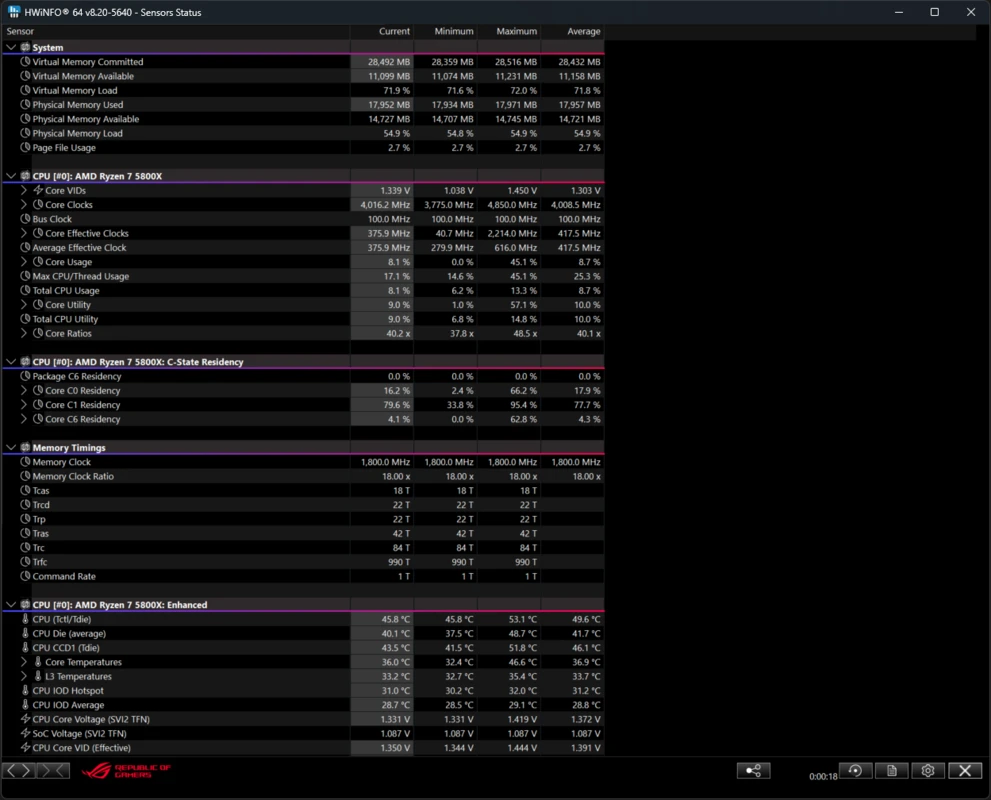
- Reset min, max, and average columns before each test. Enable sensor logging to CSV with a 1000 to 2000 ms polling interval. Log CPU package power, the hottest CPU temperature row, GPU Hot Spot, VRM MOS if exposed, and relevant fan RPM rows. Run your workload without changing settings mid-session. Stop logging and attach the CSV with an HTML system report. Details on export formats are in reports and export.
-
Multiple monitoring software conflict
Readings become unstable when several tools run together.
- Symptom
- Intermittent N/A values, frozen fan readings, application crashes, or conflicting OSD overlays when HWiNFO runs alongside MSI Afterburner, HWMonitor, AIDA64, Libre Hardware Monitor, or motherboard vendor utilities.
- Cause
- Only one application can reliably own certain SMBus, Super I/O, and embedded controller interfaces at a time. Multiple drivers or polling loops compete for the same hardware channel.
- Fix
- Close other monitoring tools completely, including tray background processes. Disable their startup entries temporarily. Launch HWiNFO first, confirm sensors stabilize, then add one integration at a time if you need Rainmeter or OSD. For Rainmeter, match 64-bit HWiNFO64 with 64-bit skins as described on the integrations section.
-
Safe download and publisher verification
Confirm an installer is authentic before granting driver access.
- Symptom
- You downloaded HWiNFO from a search result or mirror and are unsure whether the file is genuine. Windows SmartScreen or your browser flagged the download.
- Cause
- Third-party download sites sometimes repackage installers or serve outdated builds. Kernel-driver software naturally triggers SmartScreen on first run because it requests elevated access.
- Fix
- Download only from the official download page on this site. Right-click the file, open Properties, and confirm Digital Signatures list REALiX s.r.o. Compare SHA-256 hashes when published. Read the full verification workflow on trust and security before adding antivirus exclusions.
- Download HWiNFO64 8.52 from download.html
- Verify publisher REALiX s.r.o. in file Properties
- Compare SHA-256 hash when checksums are listed
- Install with administrator rights and confirm sensor startup
Still stuck?
The FAQ covers licensing, ARM64 support, temperature row selection, and compatibility with specific Windows builds.
Open full FAQ →Trust and driver safety
Learn why hwinfo64a.sys exists, how REALiX signs builds, and when antivirus detections are expected false positives.
Read trust and security →Update to HWiNFO 8.52
Many sensor and driver issues are resolved in the latest build. Download, verify the signature, and retest before changing Windows security settings.